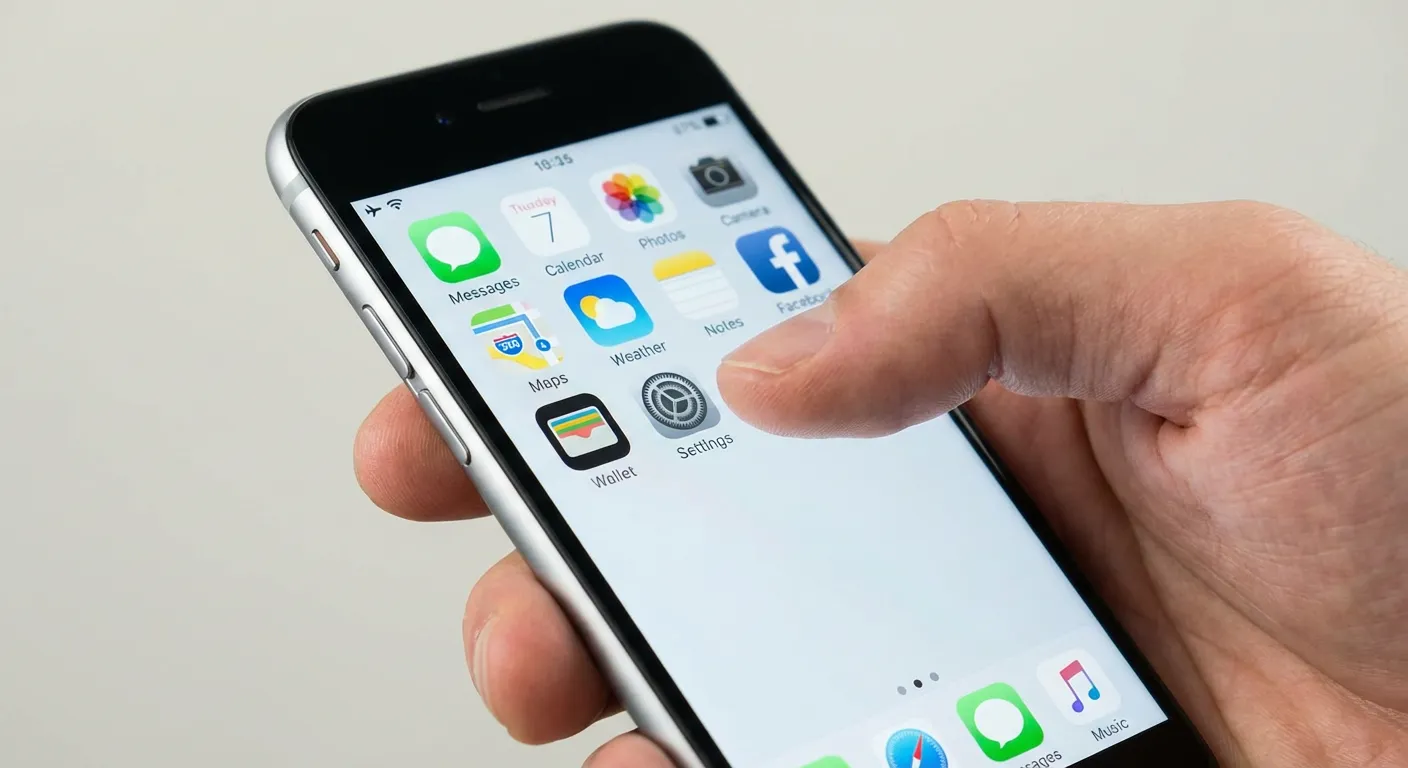
Learning how to factory reset iPhone is an essential skill every iPhone owner should master, whether you’re troubleshooting persistent software issues, preparing your device for sale, or simply starting fresh with a clean slate. A factory reset completely erases all personal data, settings, apps, and content from your iPhone, restoring it to the exact state it was in when you first unboxed it. Having guided thousands of iPhone users through this process over the past decade, I can confidently say that understanding the correct reset method for your specific situation prevents data loss disasters and saves hours of frustration.
This comprehensive guide covers everything you need to know about factory resetting your iPhone in 2025, from essential pre-reset preparations to multiple reset methods for different scenarios. Whether your iPhone is working perfectly, frozen and unresponsive, locked with a forgotten passcode, or lost and requiring remote erasure, you’ll find the exact steps you need with detailed instructions for all iPhone models running iOS 18 and earlier versions.
What is a Factory Reset on iPhone?
A factory reset on iPhone is a complete data erasure process that removes all personal information, installed apps, settings, photos, videos, messages, and configurations from your device, returning it to original factory conditions. This differs significantly from a simple restart or soft reset, which only refreshes your device’s memory without deleting any data.
When you perform a factory reset, your iPhone goes through a secure deletion process that overwrites data to prevent recovery. However, the iOS operating system remains installed—you’ll keep the same iOS version that was on your device before the reset. The process typically takes 5-15 minutes depending on your iPhone model and storage capacity.
Understanding what a factory reset does versus what it doesn’t do is crucial. A factory reset will erase your photos, contacts, messages, app data, Wi-Fi passwords, Face ID or Touch ID settings, Apple Pay cards, and all personalized configurations. It will not erase your eSIM (unless you specifically choose to), remove your device from iCloud if Find My iPhone is enabled, or fix physical hardware damage like a cracked screen or faulty battery.
Why You Might Need to Factory Reset Your iPhone
Several common scenarios require factory resetting your iPhone, each with valid reasons for taking this drastic step.
Selling or Trading In Your iPhone
Before selling, trading, or giving away your iPhone, a factory reset is mandatory to protect your personal information. This removes all your data, ensures the new owner can set up the device with their Apple ID, and prevents unauthorized access to your accounts, photos, and messages.
Troubleshooting Persistent Software Issues
When your iPhone experiences recurring problems that standard troubleshooting doesn’t fix—such as frequent app crashes, unexplained battery drain, severe performance slowdowns, or system glitches—a factory reset often resolves these issues by eliminating corrupted files and problematic software configurations.
Forgotten Passcode Recovery
If you’ve forgotten your iPhone passcode and exceeded the maximum incorrect attempts, you must factory reset your device to regain access. While this erases your data, it’s the only way to unlock a completely disabled iPhone without the passcode.
Preparing for iOS Upgrade
Some users prefer starting with a clean slate before major iOS updates. While not strictly necessary, this can prevent potential upgrade complications caused by accumulated system files and conflicting configurations.
Removing Malware or Suspicious Activity
If you suspect your iPhone has been compromised with malware, spyware, or suspicious apps that won’t uninstall normally, a factory reset provides the most thorough removal method, eliminating all potentially malicious software.
General Performance Refresh
Over time, iPhones can accumulate system clutter, redundant files, and configuration conflicts that gradually degrade performance. A factory reset provides a fresh start that often dramatically improves device responsiveness and speed.
Essential Preparations Before Factory Resetting
Taking proper precautions before factory resetting your iPhone prevents permanent data loss and ensures a smooth process.
Back Up Your iPhone Data
Backing up your iPhone is absolutely critical before any factory reset. Without a backup, all your photos, contacts, messages, app data, and settings will be permanently deleted with no recovery option.
iCloud Backup Method:
Open Settings and tap your name at the top. Select iCloud, then tap iCloud Backup. Ensure iCloud Backup is turned on (toggle should be green). Tap Back Up Now and wait for completion. Verify backup completed by checking the backup date and time. This requires a Wi-Fi connection and sufficient iCloud storage space (5GB free, upgrades available for purchase).
Computer Backup Method:
Connect your iPhone to your Mac or Windows PC using a USB cable. On Mac (macOS Catalina or later): Open Finder and select your iPhone from the sidebar. On Mac (macOS Mojave or earlier) or Windows PC: Open iTunes. Click “Back Up Now” in the Backups section. For encrypted backup with passwords and health data, select “Encrypt local backup” and create a password. Wait for the backup to complete before disconnecting.
Computer backups save to your local hard drive and don’t count against iCloud storage limits. They also include more data than iCloud backups, such as certain app data and settings that iCloud doesn’t store.
Disable Find My iPhone
You must turn off Find My iPhone before factory resetting your device, as this security feature prevents unauthorized erasure and reactivation.
Open Settings and tap your name. Select Find My, then tap Find My iPhone. Toggle off Find My iPhone (slide to gray position). Enter your Apple ID password when prompted. Tap Turn Off to confirm.
Find My iPhone acts as Activation Lock, preventing anyone from erasing or reactivating your device without your Apple ID credentials. Disabling it before reset ensures you won’t encounter activation issues later.
Sign Out of Apple ID and iCloud
Signing out of your Apple ID removes your personal information from the device and ensures smooth transfer if giving the iPhone to someone else.
Open Settings and tap your name at the top. Scroll to the bottom and tap Sign Out. Enter your Apple ID password when prompted. Choose which data to keep a copy of on the device (this will be deleted during reset anyway). Tap Sign Out again to confirm. Tap Sign Out once more in the popup confirmation.
This step is particularly important if you’re selling or gifting your iPhone, as it completely disassociates the device from your Apple ID.
Remove Payment Cards from Apple Wallet
Delete any credit cards, debit cards, or transit cards stored in Apple Wallet before resetting.
Open the Wallet app. Tap on each card. Tap the three-dot menu icon (•••) in the top right. Tap Remove This Card. Confirm by tapping Remove again.
This ensures your payment information isn’t accessible during the reset process and prevents any potential security risks.
Note Your Apple ID and Password
You’ll need your Apple ID and password to restore your iPhone from backup after the reset. Write these down or ensure you have access to them before proceeding, especially if you use two-factor authentication.
Check eSIM Status
If your iPhone uses an eSIM for cellular service, decide whether to erase it or keep it during the reset process. Contact your carrier beforehand to understand their reactivation process if you choose to erase the eSIM.
How to Factory Reset iPhone Through Settings (Standard Method)
This is the recommended method when your iPhone is working normally, and you have access to the device with your passcode.
For iPhone 8 and Later (iOS 15 or Later)
Open the Settings app from your home screen. Tap General to access system settings. Scroll down and tap Transfer or Reset iPhone. Tap Erase All Content and Settings. If you haven’t backed up recently, you’ll see a prompt to back up now or skip. Enter your iPhone passcode when prompted. Enter your Apple ID password to disable Find My and confirm. If you have an eSIM, choose whether to erase it or keep it:
Erase eSIM if selling or trading the device. Keep eSIM if upgrading to a new iPhone and transferring service. Contact your carrier after erasing to reactivate your plan.
Tap Erase iPhone (may need to tap twice to confirm). Your screen will go dark and show the Apple logo. The process takes 10-15 minutes. Your iPhone restarts showing the “Hello” setup screen when complete.
For iPhone 7 and Earlier (Older iOS Versions)
If your iPhone runs an older iOS version, the menu structure differs slightly.
Open Settings and tap General. Tap Reset (instead of Transfer or Reset iPhone). Tap Erase All Content and Settings. Enter your passcode when prompted. Enter your Apple ID password to confirm. Tap Erase iPhone. Wait for the process to complete.
The standard settings method is the cleanest and safest way to factory reset your iPhone when you have full access to the device. It properly signs you out of all services, disables Find My, and securely erases data according to Apple’s security protocols.
How to Factory Reset iPhone Using Recovery Mode (For Locked or Frozen Devices)
Use Recovery Mode when your iPhone is frozen, unresponsive, disabled due to passcode attempts, or experiencing severe software issues that prevent normal access.
Prepare Your Computer
Update your Mac to the latest macOS version or install iTunes on Windows. On Mac (macOS Catalina 10.15 or later): Use Finder (built-in). On Mac (macOS Mojave 10.14 or earlier): Use iTunes. On Windows PC: Install Apple Devices app or iTunes from the Microsoft Store or Apple website.
Enter Recovery Mode by iPhone Model
The button combination for entering Recovery Mode varies by iPhone model.
iPhone 8, iPhone 8 Plus, iPhone SE (2nd and 3rd generation), iPhone X, iPhone XR, iPhone XS, iPhone 11, iPhone 12, iPhone 13, iPhone 14, iPhone 15, iPhone 16:
Connect your iPhone to your computer with a USB cable. Quickly press and release the Volume Up button. Quickly press and release the Volume Down button. Press and hold the Side button (power button). Keep holding the Side button even when the Apple logo appears. Continue holding until you see the Recovery Mode screen (computer icon with cable).
iPhone 7 and iPhone 7 Plus:
Connect your iPhone to your computer. Press and hold both the Volume Down button and the Side button simultaneously. Keep holding both buttons even when the Apple logo appears. Continue holding until the Recovery Mode screen appears.
iPhone 6s, iPhone 6s Plus, iPhone SE (1st generation), and earlier:
Connect your iPhone to your computer. Press and hold both the Home button and the Top (or Side) button simultaneously. Keep holding both buttons even when the Apple logo appears. Continue holding until the Recovery Mode screen appears.
Restore Your iPhone
Once in Recovery Mode, your computer detects the device and displays restoration options.
On Mac (Finder) or Windows (Apple Devices app), a dialog box appears. The message says your iPhone needs to be updated or restored. Click Restore (not Update, which only installs iOS updates). Click Restore again to confirm you want to erase all data. Your computer downloads the latest iOS version compatible with your device. The download typically takes 10-30 minutes depending on internet speed. The installation and restoration process takes another 10-20 minutes. Your iPhone restarts multiple times during this process. Keep your iPhone connected to the computer until you see the setup screen.
Important Recovery Mode Notes:
Recovery Mode downloads and installs the latest iOS version, so your iPhone will be updated. This method works even if Find My iPhone is enabled, but you’ll need your Apple ID and password to complete setup afterward (Activation Lock). If the software download takes longer than 15 minutes, your iPhone exits Recovery Mode and you’ll need to repeat the process. Keep your iPhone charged above 50% or keep it plugged in during the process.
How to Factory Reset iPhone Remotely Using iCloud
Remote erasure through iCloud is essential when your iPhone is lost, stolen, or you don’t have physical access to the device but need to protect your data.
Requirements for Remote Reset
This method requires Find My iPhone to have been enabled before the device was lost or became inaccessible, the iPhone to have internet connectivity (Wi-Fi or cellular) at some point to receive the erase command, and your Apple ID and password.
Remote Erase Steps
Using any web browser (computer, tablet, or another phone), visit iCloud.com. Sign in with your Apple ID and password. Complete two-factor authentication if enabled. Click Find iPhone from the iCloud main page. Click All Devices at the top of the screen. Select the iPhone you want to erase from the list. Click Erase iPhone from the device information panel. Click Erase to confirm (you may need to confirm twice). Enter your Apple ID password again to authorize the erasure.
Your iPhone will be erased the next time it connects to the internet. You’ll receive an email confirmation when the erasure completes. After erasing, the device displays a message you can customize to help return a lost iPhone.
Using Find My App on Another Apple Device
If you have another iPhone, iPad, or Mac, you can use the Find My app instead of the website.
Open the Find My app on your other Apple device. Tap Devices at the bottom of the screen. Select the iPhone you want to erase. Scroll down and tap Erase This Device. Tap Continue and confirm. Enter your Apple ID password.
Remote erasure is permanent and cannot be undone. Once you erase your iPhone remotely, you cannot track its location through Find My iPhone anymore. The device is removed from your account after erasure completes. If your iPhone is offline when you initiate the erase command, the erasure will begin automatically the next time it connects to the internet.
How to Factory Reset iPhone Without Passcode (Using Erase iPhone Feature)
iOS 15.2 and later includes a built-in feature that allows you to erase your iPhone directly from the lock screen after multiple failed passcode attempts.
Requirements
Your iPhone must run iOS 15.2 or later. You must have previously enabled Find My iPhone. You need your Apple ID and password. Your iPhone must have internet connectivity.
Erase from Lock Screen Steps
Enter an incorrect passcode multiple times. After 5 failed attempts, you’ll see a timer. Continue trying incorrect passcodes. After 8-10 failed attempts, depending on your iOS version, you’ll see “iPhone Unavailable” or “Security Lockout” at the top of the screen. In the bottom corner, you’ll see an “Erase iPhone” option. Tap Erase iPhone. Tap Erase iPhone again to confirm. Enter your Apple ID password to approve the erasure. Your iPhone begins the erasure process immediately. Wait 5-15 minutes for completion. The device restarts showing the setup screen.
This method is particularly useful when you’ve forgotten your passcode but your iPhone is still functional otherwise. It’s faster than Recovery Mode because you don’t need a computer, and it doesn’t require downloading iOS files.
What Happens During a Factory Reset
Understanding the factory reset process helps set proper expectations.
The Erasure Process
When you initiate a factory reset, your iPhone performs several security steps. The device first disables all features and locks the screen. It then begins overwriting data storage with random patterns to prevent data recovery. All user data, apps, photos, messages, and settings are deleted. System files and iOS remain intact. The process typically takes 5-15 minutes but can extend to 30 minutes on older devices with large storage capacities.
Your screen will go dark or show the Apple logo with a progress bar. The iPhone may restart several times. Don’t interrupt the process by forcing a restart or disconnecting power.
After the Reset Completes
Your iPhone displays the “Hello” screen in multiple languages. The device is now in the same state as when you first purchased it. All your personal data is gone unless you created a backup. The iOS version remains the same (unless you used Recovery Mode, which installs the latest iOS). You must complete the setup process to use your iPhone again.
What Gets Deleted
A factory reset permanently erases all photos, videos, and camera roll. Contacts stored on the device. All messages (SMS, MMS, iMessage) and call history. Installed apps and their data. Music, podcasts, books, and downloaded media. Wi-Fi networks and passwords. Bluetooth pairings. Face ID or Touch ID biometric data. Apple Pay cards. Health and fitness data. Safari bookmarks and browsing history. Email accounts configured on the device. Custom settings and preferences. App Store purchase history (remains in your Apple ID). Downloaded keyboard layouts and dictionaries.
What Doesn’t Get Deleted
The iOS operating system remains installed. Your eSIM (unless you specifically chose to erase it). Your Apple ID account (exists separately on Apple’s servers). iCloud data (photos, contacts, notes stored in iCloud remain). App subscriptions (continue until you cancel them). Activation Lock (if Find My wasn’t disabled before reset). Your data backups stored in iCloud or on a computer.
After Factory Reset: Setting Up Your iPhone
Once the reset completes, you have several options for setting up your iPhone.
Setting Up as New iPhone
If you want a completely fresh start without restoring any data, choose “Set Up as New iPhone” during the setup process. This gives you a clean device without any of your previous apps, settings, or data. You’ll manually download apps, configure settings, and rebuild your iPhone from scratch.
Restoring from iCloud Backup
Follow the on-screen setup instructions. Select your language and region. Connect to a Wi-Fi network. Choose “Restore from iCloud Backup” when prompted. Sign in with your Apple ID and password. Select which backup to restore from (choose the most recent one). Wait for the restoration to complete (30 minutes to 2 hours depending on backup size and internet speed). Your iPhone restarts when restoration finishes. Complete remaining setup steps (Face ID, Apple Pay, etc.).
Your apps, photos, settings, and data from the backup will gradually restore. Apps download from the App Store, which can continue in the background even after setup completes.
Restoring from Computer Backup
Connect your iPhone to the computer that has your backup. On Mac (Finder) or Windows (Apple Devices/iTunes), select your iPhone. Click Restore Backup in the Backups section. Select which backup to restore from. Click Restore and wait for completion. Keep your iPhone connected until it restarts and syncs.
Computer restores are typically faster than iCloud restores because they don’t depend on internet speed. They also include more data types than iCloud backups.
Setting Up Without Backup
If you didn’t create a backup or prefer starting fresh, set up manually. Sign in with your Apple ID to access App Store, iCloud, and other services. Manually download apps from the App Store. Reconfigure settings and preferences. Re-add email accounts, Wi-Fi networks, and Bluetooth devices. Set up Face ID or Touch ID. Add payment cards to Apple Wallet.
Troubleshooting Common Factory Reset Issues
Several issues can occur during factory reset attempts. Here’s how to resolve them.
“Unable to Erase iPhone” Error
This error typically occurs when Find My iPhone is still enabled or there’s an iCloud sync issue.
Ensure you have a stable internet connection (Wi-Fi preferred). Go to Settings > [Your Name] > Find My > Find My iPhone and toggle it off. Sign out of iCloud completely before attempting reset. Try restarting your iPhone before attempting the reset again. If the error persists, use Recovery Mode method instead.
Reset Process Stuck or Frozen
If the Apple logo appears but the progress bar doesn’t move for over 30 minutes, the reset may be stuck.
Force restart your iPhone (use the button combination for your model). Try the Recovery Mode method instead. Ensure your iPhone has sufficient battery charge (above 50%). Keep the device plugged into power during the reset.
Activation Lock After Reset
If you see an Activation Lock screen after factory reset asking for the previous owner’s Apple ID, the device wasn’t properly prepared for sale.
Enter the Apple ID and password that was used on the device before reset. Contact the previous owner to remove the device from their Apple ID. Visit iCloud.com > Find My iPhone > All Devices > Remove from Account. If purchased secondhand, contact the seller for assistance. As a last resort, contact Apple Support with proof of purchase.
Recovery Mode Not Working
If your iPhone won’t enter Recovery Mode or your computer doesn’t recognize it, try these solutions.
Use a different USB cable (Apple original or certified). Try a different USB port on your computer. Restart your computer. Update macOS or install the latest iTunes version. Ensure your iPhone has sufficient battery (charge to 50%+). Try the button sequence again, ensuring precise timing. On Windows, check if Apple Mobile Device USB Driver is installed.
Data Not Restoring from Backup
If your backup won’t restore or appears incomplete, several factors could be responsible.
Verify you selected the correct backup with the most recent date. Ensure sufficient iCloud storage if restoring from iCloud. Check your internet connection stability. Some app data doesn’t restore (apps need to re-download). Photos may take several hours to fully restore from iCloud. Try restoring from computer backup if iCloud restore fails.
Factory Reset vs. Other iPhone Reset Options
Understanding different reset types helps you choose the appropriate method for your situation.
Soft Reset (Restart)
A soft reset simply turns your iPhone off and back on, refreshing the system memory. This doesn’t delete any data and often fixes minor glitches like frozen apps or temporary performance issues.
iPhone 8 and later: Press and quickly release Volume Up, press and quickly release Volume Down, then press and hold the Side button until the Apple logo appears.
iPhone 7: Press and hold both Volume Down and Side buttons until the Apple logo appears.
iPhone 6s and earlier: Press and hold both Home and Top buttons until the Apple logo appears.
Hard Reset (Force Restart)
A hard reset forces your iPhone to restart immediately when it’s completely frozen or unresponsive. Like a soft reset, this doesn’t delete data—it’s just a more forceful restart method. Use the same button combinations as soft reset above.
Reset Specific Settings
iOS allows resetting individual setting categories without erasing personal data. Go to Settings > General > Transfer or Reset iPhone > Reset to access these options:
Reset All Settings: Resets Wi-Fi, Bluetooth, notification settings, display settings, etc., but keeps apps and data. Reset Network Settings: Fixes Wi-Fi and cellular connection issues by clearing all network configurations. Reset Keyboard Dictionary: Removes custom words and typing suggestions. Reset Home Screen Layout: Returns app icons to default arrangement. Reset Location & Privacy: Clears location permissions and privacy settings for all apps.
Erase All Content and Settings (Factory Reset)
This is the complete erasure we’ve been discussing throughout this guide. It permanently deletes everything and returns your iPhone to factory condition. Only use this when selling your device, starting completely fresh, or when other troubleshooting methods have failed.
When Factory Reset Won’t Help
Factory reset solves software issues but cannot fix hardware problems. Understanding these limitations prevents wasted time and frustration.
Hardware Issues That Remain After Reset
Physical screen damage, including cracks, dead pixels, or unresponsive touch areas. Battery problems like rapid drain, swelling, or failure to charge. Water damage and liquid exposure issues. Faulty cameras, speakers, or microphones. Broken buttons or damaged ports. Wi-Fi or Bluetooth hardware failures. Face ID or Touch ID hardware malfunctions.
If problems persist after factory reset, your iPhone likely has hardware damage requiring professional repair or replacement.
When to Seek Professional Help
If factory reset doesn’t resolve your issues, consider professional diagnosis. Apple Stores and Apple Authorized Service Providers can run diagnostic tests to identify hardware problems. Many issues are covered under Apple’s limited warranty (first year) or AppleCare+ extended coverage.
Visit Apple’s support website to schedule a Genius Bar appointment or mail-in service. Third-party repair shops can also diagnose issues, often at lower costs than official Apple service.
Security and Privacy Considerations
Factory reset is designed with security in mind, but understanding the process helps protect your privacy.
Data Encryption and Secure Erasure
Modern iPhones use hardware encryption for all stored data. When you factory reset, the encryption keys are destroyed, making data recovery extremely difficult even with specialized equipment. The reset process also overwrites storage areas to prevent data recovery attempts.
This security measure protects your personal information when selling or discarding your iPhone. However, it also means you cannot recover data after a factory reset without a backup.
Ensuring Complete Data Removal
To maximize privacy protection before selling or recycling your iPhone:
Sign out of all apps manually (especially banking and financial apps). Delete payment cards from Apple Wallet. Disable Find My iPhone. Sign out of iCloud and Apple ID. Perform the factory reset. Verify the reset completed by powering on the device to check for the setup screen. Remove any physical SIM card if applicable.
Activation Lock Protection
Activation Lock prevents anyone from activating your iPhone without your Apple ID and password, even after factory reset. This security feature protects against theft. If someone steals your iPhone and factory resets it, they cannot use it without your credentials.
Always disable Find My iPhone before factory reset if you’re selling or giving away your device. Otherwise, the new owner cannot activate it.
Tips for a Successful Factory Reset
Following these best practices ensures a smooth factory reset experience.
Create Multiple Backups
Create both iCloud and computer backups before resetting. This redundancy ensures you have access to your data even if one backup method fails. Verify backup completion by checking the date and time stamps.
Charge Your iPhone
Ensure your iPhone has at least 50% battery charge before starting a factory reset. Better yet, keep it plugged into power throughout the process. An interrupted reset due to battery death can cause software corruption.
Use Original Apple Cables and Accessories
When using Recovery Mode, use Apple original or certified USB cables. Third-party cables sometimes cause connection issues with computers.
Don’t Interrupt the Process
Once factory reset begins, let it complete without interruption. Don’t force restart your iPhone, unplug it from power or computer, or attempt to use it during the reset process.
Document Important Information
Before resetting, note down important information you might forget:
Apple ID and password. Two-factor authentication backup codes. Important account usernames and passwords not stored in iCloud Keychain. Custom app settings or configurations you’ll want to recreate.
Test Before Selling
After factory reset, power on your iPhone briefly to verify it reaches the setup screen. This confirms the reset completed successfully. Then power it off again before handing it to the new owner.
How to Factory Reset iPhone: Pros and Cons
Understanding the advantages and disadvantages helps you make an informed decision.
Pros
Solves Persistent Software Issues Factory reset eliminates corrupted files, problematic configurations, and software conflicts that cause crashes, freezes, and performance problems.
Complete Privacy Protection When selling or recycling your iPhone, factory reset ensures all personal data, photos, messages, and account information are permanently deleted.
Fresh Start Performance Removing accumulated system clutter often dramatically improves device speed, responsiveness, and battery life.
Malware and Spyware Removal Factory reset effectively removes virtually all malware, spyware, suspicious apps, and potentially harmful software.
Resolves Complex Problems When standard troubleshooting fails, factory reset provides a comprehensive solution that often succeeds where other methods don’t.
Prepares Device for New Owner Properly erases your data and accounts, allowing smooth setup for the next user without complications.
Free and Built-In Unlike professional repairs or software tools, factory reset is completely free and built into every iPhone.
Cons
Permanent Data Loss All photos, messages, app data, and settings are permanently deleted unless you created a backup beforehand.
Time-Consuming Process Factory reset takes 5-15 minutes, but restoring from backup afterward can require 30 minutes to 2 hours.
Requires Reconfiguration You must manually reconfigure settings, re-download apps, sign into accounts, and set up preferences again.
Won’t Fix Hardware Problems Physical damage, battery issues, or hardware malfunctions remain after factory reset.
Risk of Forgotten Credentials If you forget your Apple ID password, you cannot restore from backup or reactivate your iPhone after reset.
Potential Activation Lock Issues Failing to disable Find My iPhone before reset can create activation problems for new owners.
App and Game Progress Loss Unless apps support cloud save, you’ll lose game progress and app-specific data not included in backups.
Frequently Asked Questions
How long does it take to factory reset an iPhone?
A factory reset typically takes 5-15 minutes to complete. The exact time depends on your iPhone model and storage capacity. Newer models with less data reset faster, while older iPhones with full storage may take up to 30 minutes. After the reset, restoring from backup requires an additional 30 minutes to 2 hours depending on your backup size and internet connection speed.
Will factory reset remove my Apple ID from iPhone?
No, a factory reset alone does not automatically remove your Apple ID if Find My iPhone is enabled. You must manually sign out of your Apple ID before factory reset. If you reset without signing out, Activation Lock remains active, preventing anyone from setting up the device without your Apple ID and password. Always disable Find My iPhone and sign out of iCloud before resetting if giving the device to someone else.
Can I factory reset iPhone without passcode?
Yes, you can factory reset iPhone without a passcode using three methods: the built-in Erase iPhone feature on the lock screen (iOS 15.2+), Recovery Mode through a computer connection, or iCloud remote erase through iCloud.com. All methods erase your data, and you’ll need your Apple ID password to complete setup afterward if Find My was enabled.
Does factory reset delete everything on iPhone?
Yes, factory reset permanently deletes virtually everything: photos, videos, contacts, messages, apps, app data, settings, Wi-Fi passwords, Face ID/Touch ID data, Apple Pay cards, and all personal configurations. However, it doesn’t delete your iOS operating system, eSIM (unless you choose to), or your iCloud account data stored on Apple’s servers. Without a backup, this data is permanently lost.
How do I factory reset iPhone that won’t turn on?
If your iPhone won’t turn on due to software issues, connect it to a computer and use Recovery Mode to factory reset. Press the specific button combination for your iPhone model while connected to force it into Recovery Mode, then restore through Finder (Mac) or iTunes/Apple Devices app (Windows). If the device won’t turn on due to hardware failure, professional repair is needed.
What happens if I factory reset a stolen iPhone?
If your iPhone was stolen and you factory reset it remotely through iCloud, the device is erased but Activation Lock remains active. This means the thief cannot set up or use the iPhone without your Apple ID and password, effectively making it useless. You can also display a custom message with contact information on the lock screen to help return a lost device.
Will factory reset remove viruses from iPhone?
Yes, factory reset effectively removes virtually all malware, viruses, spyware, and suspicious apps from your iPhone. Since iOS runs apps in sandboxed environments and malware typically exists as malicious apps or configurations, erasing all content and settings eliminates these threats. However, if you restore from a backup that contains malware, you could reintroduce the problem.
Can I recover data after factory reset without backup?
No, data cannot be recovered after factory reset if you didn’t create a backup beforehand. Apple’s secure erasure process overwrites data and destroys encryption keys, making professional data recovery nearly impossible. This is intentional security design to protect your privacy. Always create backups to iCloud or your computer before factory resetting.
Conclusion
Mastering how to factory reset iPhone empowers you to solve persistent problems, protect your privacy when selling devices, and maintain optimal performance throughout your iPhone’s lifespan. Whether you’re using the straightforward Settings method for routine resets, Recovery Mode for troubleshooting frozen devices, or iCloud remote erase for lost iPhones, each approach serves specific scenarios with proven effectiveness.
The most critical aspect of factory resetting is preparation—always backup your data to iCloud or computer before proceeding, as the erasure process is permanent and irreversible without backups. Take the few minutes required to verify backup completion, disable Find My iPhone, and document important credentials. These simple precautions prevent data loss disasters and activation issues that could render your iPhone unusable.
Remember that factory reset is a powerful tool for software issues but cannot solve hardware problems. If persistent issues remain after reset, your iPhone likely needs professional diagnosis and repair. For selling or gifting your device, following the complete checklist—backup, sign out of Apple ID, disable Find My, remove payment cards, and perform factory reset—ensures both your privacy protection and smooth transition for the new owner.
Whether you’re troubleshooting performance problems, preparing for an upgrade, or simply seeking a fresh start with your iPhone, this guide provides the knowledge and step-by-step instructions you need to factory reset safely and effectively. Bookmark this resource for future reference, and share it with friends and family who might benefit from understanding this essential iPhone maintenance skill.