
Large PDF files can be frustrating when you’re trying to email documents, upload files to websites, or share important reports with colleagues. A PDF compressor is an essential tool that reduces file size while maintaining document quality, making file sharing faster and more efficient. Whether you’re a student submitting assignments, a business professional sharing contracts, or anyone dealing with oversized PDFs, understanding how to compress PDFs effectively can save time, storage space, and bandwidth.
In this comprehensive guide, I’ll walk you through everything you need to know about PDF compression, from understanding how it works to choosing the right tools for your specific needs. With over a decade of experience in document management and digital workflows, I’ve tested dozens of compression solutions to bring you proven methods that actually work. You’ll discover how to compress PDFs by up to 90% without sacrificing readability, learn which tools offer the best balance of quality and compression, and understand when to use online versus offline solutions.
What is a PDF Compressor?
A PDF compressor is software or an online tool designed to reduce the file size of PDF documents by removing redundant data, optimizing images, and restructuring the file architecture. Unlike simple file compression formats like ZIP, PDF compressors specifically target the internal structure of PDF files to achieve significant size reduction while preserving the document’s appearance and functionality.
PDF compression works through several methods including image downsampling, font subsetting, removing duplicate objects, and eliminating embedded thumbnails or metadata. Modern PDF compressors use smart algorithms that analyze your document and apply the optimal compression settings automatically, ensuring you get the smallest file size without visible quality degradation.
How PDF Compression Works
Understanding the mechanics behind PDF compression helps you make informed decisions about which settings to use. Here’s how the process works:
Image Optimization Images typically account for 80-95% of a PDF’s file size. Compressors reduce image resolution, convert color spaces, and apply lossy or lossless compression algorithms like JPEG or FLATE to shrink image data significantly.
Font Subsetting Instead of embedding entire font files, compressors include only the characters actually used in your document, reducing font data by up to 70% in most cases.
Object Deduplication PDF files often contain duplicate objects, especially in multi-page documents with repeated headers, logos, or watermarks. Compression tools identify and remove these duplicates, storing only one instance that’s referenced throughout the document.
Metadata Removal Hidden metadata like edit history, comments, annotations, and document properties add unnecessary weight. Compressors can strip this data while keeping your content intact.
Stream Compression PDF compressors apply compression algorithms to text streams and vector graphics, making the file structure more efficient without affecting appearance.
Types of PDF Compression
Lossy Compression
Lossy compression achieves dramatic file size reduction by permanently removing some data from your PDF. This method is ideal for documents where slight quality degradation won’t impact usability, such as marketing materials, presentations, or archived documents that won’t be printed.
Advantages:
- Reduces file size by 70-95%
- Fast processing speed
- Works well for image-heavy documents
- Ideal for web sharing and email attachments
Disadvantages:
- Cannot be reversed once applied
- May reduce image sharpness
- Not suitable for legal or official documents requiring perfect fidelity
- Text quality may degrade with aggressive settings
Lossless Compression
Lossless compression reduces file size without removing any data, ensuring perfect quality retention. This method restructures the PDF efficiently but offers more modest compression ratios compared to lossy methods.
Advantages:
- Maintains 100% original quality
- Completely reversible
- Safe for legal documents, contracts, and official records
- No visual degradation whatsoever
Disadvantages:
- Smaller compression ratios (typically 20-40%)
- Slower processing for large files
- Less effective for already optimized PDFs
- May require more powerful compression tools
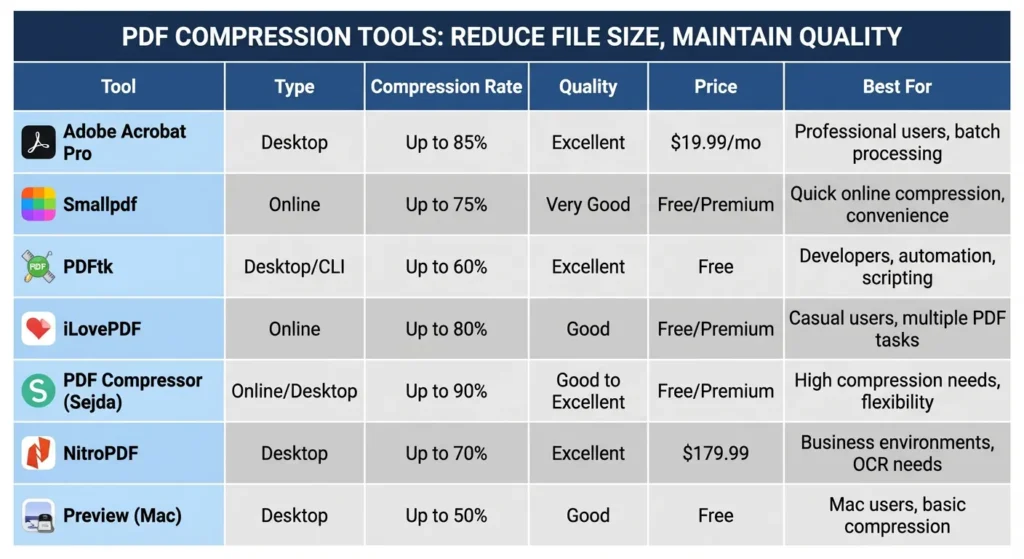
Top PDF Compressor Tools Comparison
| Tool | Type | Compression Rate | Quality | Price | Best For |
|---|---|---|---|---|---|
| Adobe Acrobat Pro | Desktop | Up to 85% | Excellent | $19.99/mo | Professional users, batch processing |
| Smallpdf | Online | Up to 75% | Very Good | Free/Premium | Quick online compression, convenience |
| PDFtk | Desktop/CLI | Up to 60% | Excellent | Free | Developers, automation, scripting |
| iLovePDF | Online | Up to 80% | Good | Free/Premium | Casual users, multiple PDF tasks |
| PDF Compressor (Sejda) | Online/Desktop | Up to 90% | Good to Excellent | Free/Premium | High compression needs, flexibility |
| NitroPDF | Desktop | Up to 70% | Excellent | $179.99 | Business environments, OCR needs |
| Preview (Mac) | Desktop | Up to 50% | Good | Free | Mac users, basic compression |
How to Compress PDF Files Online
Online PDF compressors offer convenience and accessibility without requiring software installation. Here’s a step-by-step process:
Step 1: Choose a Reliable Online Compressor Select a trusted service like Smallpdf, iLovePDF, or Adobe Online Tools. Ensure the platform uses secure HTTPS connections and has clear privacy policies.
Step 2: Upload Your PDF Drag and drop your file into the upload area, or click to browse and select your PDF. Most online tools support files up to 5GB, though some free versions have stricter limits.
Step 3: Select Compression Level Choose between basic, recommended, or strong compression depending on your quality requirements. Most tools offer preset options like “High Quality” or “Small Size.”
Step 4: Process and Download Click the compress button and wait for processing to complete. Download times vary based on file size and server load, typically ranging from 5 seconds to 2 minutes.
Step 5: Verify Quality Always open the compressed PDF to check that text remains readable and images are acceptable before deleting the original file.
How to Compress PDF Files Offline
Offline compression offers better privacy, faster processing for large files, and more advanced customization options.
Using Adobe Acrobat Pro
Open your PDF in Adobe Acrobat Pro and navigate to File > Save As Other > Reduced Size PDF. Select the compatibility version and click OK to apply standard compression. For advanced control, use Tools > Optimize PDF to customize image quality, font embedding, and object removal settings.
Using Mac Preview
Open your PDF in Preview, then select File > Export. Under the Quartz Filter dropdown, choose “Reduce File Size” and save the document. While this method is convenient for Mac users, it applies aggressive compression that may significantly reduce quality.
Using Free Desktop Software
Tools like PDF24 Creator (Windows) and PDFtk (cross-platform) offer free offline compression. These applications provide command-line interfaces for automation and batch processing, making them ideal for repetitive tasks.
Best Practices for PDF Compression
Match Compression to Purpose Use high compression for internal documents and web sharing, but preserve quality for client deliverables, legal documents, and materials intended for professional printing.
Test Before Bulk Processing Always compress a single test file first to evaluate quality at different settings before processing hundreds of documents with the same parameters.
Keep Original Backups Never delete original files until you’ve confirmed the compressed version meets your needs. Lossy compression cannot be reversed.
Consider Document Content Text-only PDFs compress less dramatically than image-heavy documents. Scanned documents with high-resolution images offer the most compression potential.
Optimize Before Creation When creating PDFs from source documents, use appropriate export settings in Microsoft Word, PowerPoint, or design software to avoid unnecessarily large files from the start.
Use Batch Processing For multiple files, use desktop software with batch compression features to save time and ensure consistent quality across all documents.
Compression Settings Explained
DPI (Dots Per Inch) Reducing image DPI is the most effective compression method. Web viewing requires only 72-150 DPI, while printing needs 300 DPI or higher. Downsampling images from 600 DPI to 150 DPI can reduce file size by 80% with minimal quality loss for digital viewing.
Color Space Conversion Converting RGB images to CMYK or grayscale reduces data significantly when color isn’t essential. Grayscale conversion can reduce image size by 50-70% compared to full color.
JPEG Quality Percentage Most compressors let you set JPEG quality from 1-100%. Sweet spots are typically 60-85% for good quality with substantial compression, while 85-100% preserves near-original quality with modest gains.
Font Embedding Options Choose between full font embedding (largest size, maximum compatibility), subset embedding (medium size, good compatibility), or no embedding (smallest size, requires fonts on viewing system).
When NOT to Compress PDFs
Certain situations demand preserving original file quality regardless of size:
Legal and Official Documents Contracts, court filings, notarized documents, and government submissions should never use lossy compression, as quality degradation could affect legal validity or readability of crucial information.
High-Resolution Print Materials Brochures, posters, banners, and marketing materials intended for professional printing require full image resolution and color accuracy. Compression will result in pixelated prints.
Documents with Fine Details Architectural drawings, engineering schematics, medical imaging, and technical diagrams contain critical details that may become illegible with aggressive compression.
Already Optimized Files Repeatedly compressing the same PDF yields diminishing returns and can introduce quality artifacts. If a PDF is already small relative to its content, further compression may do more harm than good.
PDF Compression for Different Use Cases
Email Attachments Most email providers limit attachments to 10-25MB. Compress PDFs to under 5MB for reliable delivery using medium to strong compression settings that prioritize size reduction.
Website Upload For web hosting, aim for PDFs under 2-3MB to ensure fast loading times. Use 150 DPI image resolution and aggressive compression since users view documents on screens, not print them.
Cloud Storage While cloud services offer generous storage, compressing archived PDFs by 50-70% can dramatically extend your available space and reduce monthly costs for paid tiers.
Mobile Sharing Users on mobile data connections benefit from smaller files. Compress to under 1MB when possible, especially for documents shared via messaging apps.
Security Considerations
Privacy When Using Online Tools Free online compressors typically upload your files to third-party servers. Read privacy policies carefully and avoid uploading sensitive documents like financial records, medical information, or confidential business files to public compression services.
Data Retention Policies Many services claim to delete files after 1-24 hours, but you have no way to verify this. For truly sensitive materials, always use offline compression software that processes files locally.
Encryption After Compression If you must compress sensitive PDFs, use password protection or encryption after compression to add a security layer before sharing or storing files.
Metadata Concerns Compression tools that remove metadata can inadvertently delete important document properties, author information, or timestamps needed for compliance or version tracking.
Troubleshooting Common Issues
File Size Barely Reduced This typically indicates your PDF was already optimized during creation or previous compression. PDFs created with efficient export settings may only compress by 5-15%.
Quality Degradation Too Severe Reduce compression strength, increase DPI settings, or switch to a tool with finer control over quality parameters. Test with incremental compression adjustments.
Compression Failed or Error Messages Corrupted PDFs, password-protected files, or documents with unusual formatting may fail compression. Try removing security settings, repairing the PDF, or converting to a fresh PDF before compressing.
Text Becomes Blurry This happens when compression tools downscale text as if it were an image. Use tools that preserve text layers and only compress embedded images and graphics.
Future of PDF Compression Technology
Artificial intelligence and machine learning are revolutionizing PDF compression. Modern algorithms analyze document content to apply custom compression strategies for each element, achieving better results than one-size-fits-all approaches.
AI-Powered Smart Compression Next-generation tools use computer vision to identify important document sections that require quality preservation while aggressively compressing less critical areas like background patterns or decorative elements.
Format Evolution Newer PDF standards like PDF 2.0 include improved compression algorithms and more efficient data structures, allowing smaller file sizes by default without requiring third-party compression.
Cloud Processing Server-side compression using powerful cloud infrastructure enables faster processing of large files and batch jobs that would overwhelm typical consumer computers.
FAQ
How much can I compress a PDF without losing quality? With lossless compression, you can typically reduce PDF file size by 20-40% without any quality loss. For lossy compression, reducing files by 60-70% while maintaining acceptable quality for screen viewing is achievable by using 150 DPI image resolution and 75% JPEG quality settings.
Is it safe to compress PDFs online? Online compression is generally safe for non-sensitive documents, but avoid uploading confidential files containing personal information, financial data, or proprietary business content. Use offline software or trusted enterprise services with clear privacy policies for sensitive materials.
Can compressed PDFs be decompressed? No, lossy compression permanently removes data and cannot be reversed. Lossless compression can technically be reversed, but most tools don’t offer this feature. Always keep original files as backups before compressing.
What’s the best free PDF compressor? Smallpdf and iLovePDF offer excellent free online compression with reasonable limits, while PDFtk and PDF24 Creator provide powerful free desktop options. For Mac users, the built-in Preview app offers basic compression at no cost.
Does compression affect PDF searchability? Properly implemented compression should not affect text searchability since it primarily targets images and redundant objects while preserving text layers. However, aggressive compression of scanned documents or poorly executed OCR can reduce search accuracy.
How do I compress multiple PDFs at once? Desktop software like Adobe Acrobat Pro, NitroPDF, and PDF24 Creator offer batch processing features. Select multiple files, apply compression settings, and process all documents simultaneously for efficient workflow.
Why is my compressed PDF still large? Your PDF may contain high-resolution images, embedded fonts, or complex vector graphics that resist compression. Try more aggressive settings, convert color images to grayscale if acceptable, or use specialized tools designed for heavy compression.
Can I compress password-protected PDFs? Most compression tools require you to remove password protection before processing. Unlock the PDF, compress it, then reapply password protection to the compressed version for security.
Conclusion
Mastering PDF compression empowers you to share documents efficiently, save storage space, and improve workflow speed across personal and professional contexts. Whether you need quick online compression for a single email attachment or advanced batch processing for archiving hundreds of files, understanding compression types, tool capabilities, and best practices ensures optimal results.
Start by identifying your specific needs—prioritize convenience with online tools for occasional use, or invest in desktop software for regular compression tasks requiring privacy and control. Always balance file size reduction against quality requirements, keeping in mind that aggressive compression works well for digital distribution but falls short for print materials and official documents.